
A QR on a phone: add a link people can tap too
Give your website or digital brochure QR a clear link to the same destination; prepare both with WikiURL and test how they work.
Do not make the camera the only route
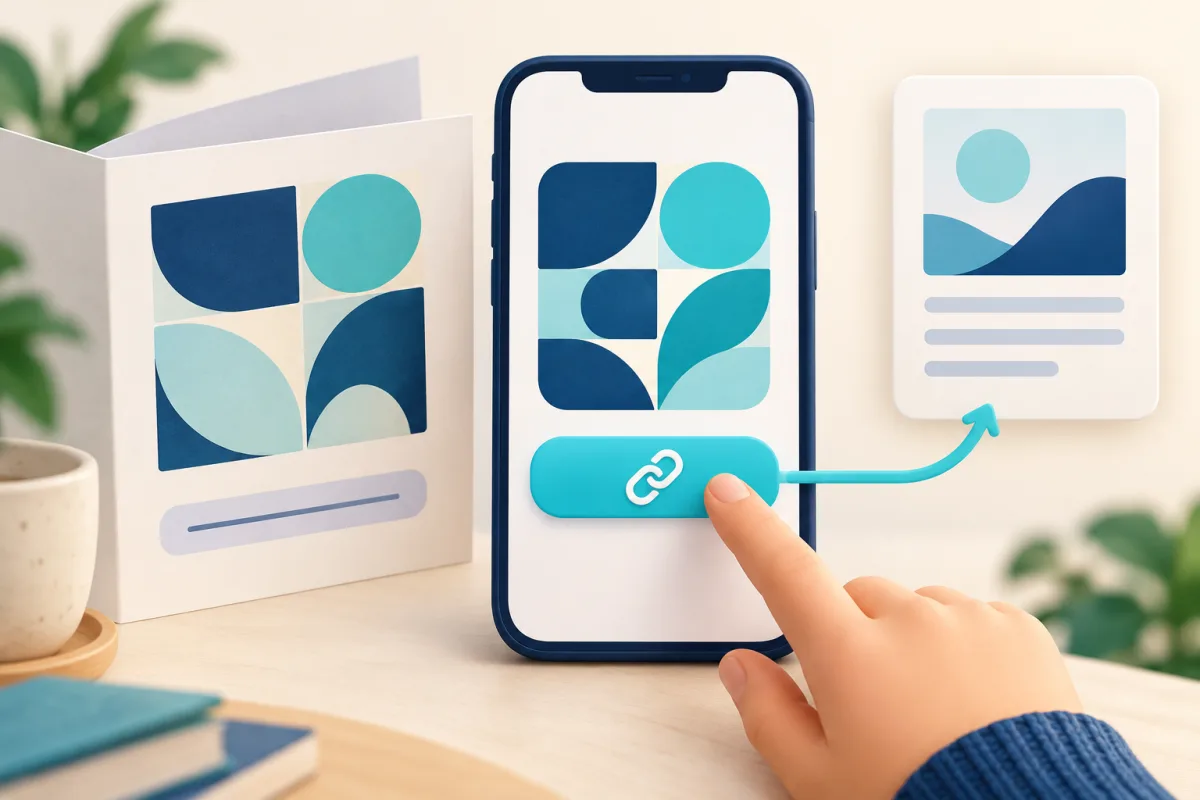
Someone receives an event brochure on their phone. They want the programme, but see only a QR and an instruction to scan. No second device is available. Although some readers can recognise codes inside images, you should not require every recipient to know that procedure. This guide proposes a simple solution: retain the QR when useful and add a direct link to the same content in the digital version.
Making the image bigger does not alone solve the problem. A QR visible on a screen and an activatable link are different mechanisms. We will use a public programme example, without assuming an exported file automatically retains links. WikiURL can generate the image from your chosen address; adding a link to a website or document depends on your editor and must be checked in the shared result.
Start with one address for both options
Choose the programme’s final page and save its address as a reference. The example uses example.invalid, a fictional domain you must replace with your actual website. Use that same address for the QR and direct link. If choosing an intermediate short link, check its state and destination before using it in both places. Two access methods should not end up advertising different programme versions.
Enter the complete address in WikiURL’s QR generator and save the file for your design. Keep the URL as text too: the image does not replace that record. Add a real link in your website or document editor, rather than a phrase painted inside the image to resemble a button. When regenerating the QR, confirm it still matches the reference address instead of retaining an older version.
https://example.invalid/programaWrite a label explaining what will open
In the digital version, place a call such as View the event programme beside the QR. This is more informative than a generic Here when separated from its paragraph. W3C technique G91 proposes link text describing its purpose to distinguish destinations. Match the wording to actual content: do not advertise registration if the link only provides information, or promise a download if it opens a page.
A visible address can help on paper, but does not always explain a digital link’s purpose. Separate the needs: a descriptive label to activate and a readable address where transcription makes sense. Do not change the destination merely to shorten the label. If the programme requires sign-in or a particular format, indicate that when relevant so the person can decide whether to proceed.
Review the image’s role too
If the QR image is the only content of a link, its text alternative should explain the action or destination. W3C states that functional images need an alternative conveying purpose rather than appearance alone. A square of dots does not explain that the programme will open. Do not assume every screen reader interprets encoded content by examining the file’s pixels.
If image and text belong to the same link and express the same function, review W3C’s supplementary-image pattern to avoid unnecessary repetition. The choice depends on structure, rather than copying the same alt to every QR. This guide offers a starting point for reviewing the component; it does not certify an entire page, PDF or compliance with every accessibility requirement.
Test the digital result, not only the original design
Open the exported file or published page on a phone and activate the link without the camera. Confirm it reaches the correct programme and the label still makes sense. On a website, also review keyboard navigation: an HTML link with a destination supports Enter activation when focused, as MDN documents. A graphic resembling a button does not itself demonstrate that behaviour.
For a PDF, check the actual file you will send in the intended reader; do not assume every export and reader behaves alike. If turning it into a social-media image, the link may need adding through the post’s features. A URL drawn within a screenshot does not automatically become a hyperlink. Review the received copy rather than only what worked inside the editor.
Keep a useful alternative in print and future revisions
In print, place a readable address beside the QR with a short destination explanation. Check both options lead where intended. The address should be transcribable without identifying every module of the symbol. With an intermediate URL, remember availability is part of access; printing it does not prevent a pause or expiry you configured.
Keep the reference address, files and link text together in a publishing record. Repeat tests after changing the programme, regenerating the QR or replacing the brochure. Updating an image does not itself update a link left in another document version. The practical outcome is two consistent routes to the same content, tested in context, rather than requiring a scanning puzzle before someone can read a page.