Your PDF opens instead of downloading: check the link
Check a PDF destination with WikiURL and distinguish server response headers from browser preferences before sharing your document link.
First define what the PDF recipient needs
You send an event programme with a button labelled Download, but the document appears in a tab. Someone else gets a download when they expected to read it. Neither situation alone proves that the link is broken. Before changing the URL, decide whether you need to support reading, deliver a copy or provide both options, and establish what is actually happening on the recipient’s device when they follow the address you sent.
The questions consulted reveal two different needs: downloading an external PDF through HTML and displaying one despite browser preferences. This guide uses a public programme as its example. WikiURL helps inspect a URL’s response and destination; it does not configure the document server or replace the visitor’s viewer. Start by separating the requested content, instructions from the server delivering it and the way each browser interprets those instructions in the recipient’s actual environment.
Response headers guide file presentation
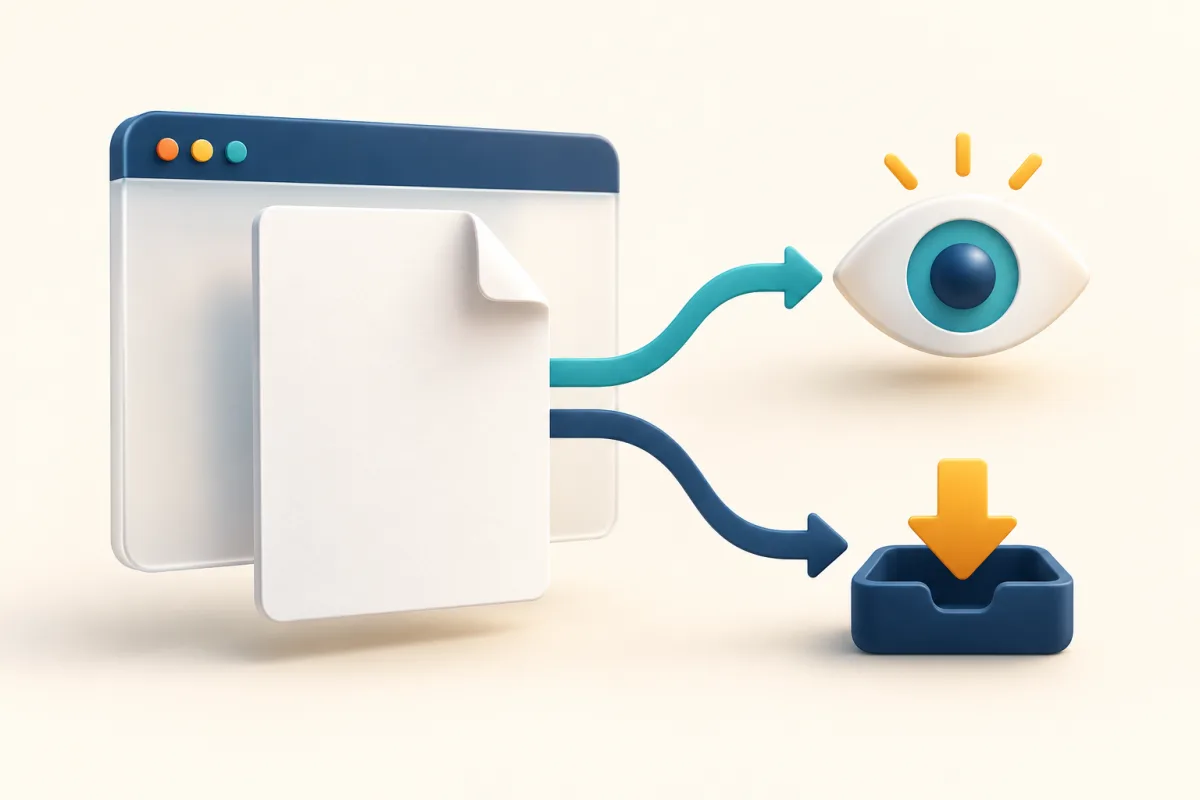
MDN explains that Content-Disposition indicates display inside the browser or treatment as an attachment. RFC 6266 defines inline and attachment. The examples show two alternative responses, not a block to send together. Content-Type describes the PDF type and filename suggests a name. These are response headers from the server delivering the file. Writing those words in button text or adding them to the address does not configure that server response.
Inline expresses an intention to display content, while attachment requests download handling. Neither guarantees an identical visual experience: MDN notes that browsers, settings and other factors influence downloads. A file may be saved automatically or opened afterwards. Ask the hosting administrator to inspect the actual response for the final file. Do not request a global change affecting every document on the site if you only need to resolve the behaviour of one event programme.
Content-Type: application/pdf
Content-Disposition: inline; filename="programa.pdf"

Content-Type: application/pdf
Content-Disposition: attachment; filename="programa.pdf"
Do not confuse the address with its contents
The fictional example address does not work: replace example.invalid with your published domain before testing. Check that the destination delivers the approved programme rather than an announcement page, private login or error. A path ending in .pdf is a clue rather than a content check. Renaming the URL does not transform an HTML page into a PDF document or repair damaged file contents. Confirm the actual resource before changing how it is presented.
If you administer the website, inspect the file request in browser network tools and examine Content-Type and Content-Disposition on the final response. Otherwise give the administrator the URL, observed behaviour and expected result. Ask them to check the correct file, avoiding screenshots containing cookies or credentials. Keep the approved original: a filename or header modification should not be confused with a new version of the programme’s content or evidence that its details have been updated.
https://example.invalid/documentos/programa.pdfThe download attribute is not a universal command
On a page you control, you can offer an HTML link with download. MDN limits its operation to same-origin URLs and supported blob and data cases. For another origin’s URL, the attribute is ignored and normal navigation occurs, although the destination server may still request downloading through Content-Disposition. Do not promise to fix an external file by adding this attribute or merely changing the words displayed on its button in your page.
A short link adds another destination to the journey without turning another server’s PDF into a file from your own origin. A QR represents an address; it does not install download instructions in a browser either. If you depend on external hosting, use its documented options or ask the owner for the appropriate distribution URL. When you cannot control its response, a reading page with clear guidance may be more useful than a promise of automatic downloading.
Use WikiURL to inspect the public journey
Enter the programme’s public URL in WikiURL’s URL checker. Inspect HTTP status and the detected final destination if redirects occur. Do not submit private addresses, administration links or secrets. If the result ends at a login screen or another resource, first correct the shared destination. A 200 status describes the response to that check; it does not establish that a visitor has saved the PDF onto their device or even read the intended document.
Next open exactly the link you will send, using a desktop browser and a phone. Check the programme title and date, readability and the ability to save a copy through available controls. The checker does not reproduce each reader’s viewer or preferences. If its technical result differs from the browser experience, record both results and their context. Do not declare that every reader will have the same experience on the strength of a single successful test.
Publish a clear expectation and keep the test record
For reading, wording such as View programme as PDF avoids promising immediate saving. If you offer a tested download option, explain which document it supplies and its size when known. In this example, you can include brief instructions for saving from the viewer if it opens. Do not require changes to general browser settings for access to one programme or conceal the destination behind several buttons whose labels fail to identify the document clearly.
Record the final URL, document version and tested devices before making the QR or distributing the short link. Repeat the test after changing hosting or replacing the file because the browser response may change. The useful outcome is the correct programme, accessible to its audience, with honest instructions for reading or saving it. Opening a tab and downloading are different behaviours, and the message on your link should accurately reflect the distinction for the people receiving it.