Your link works, but others request access: check permissions
Test a link as owner, authorised reader and signed-out visitor; distinguish destination permissions from HTTP responses with WikiURL.
Opening it in your browser does not prove it is ready to share
You prepared a PDF for a meeting. You open it, copy the link and send it; another person sees a request-access screen. The link may be correct while the file remains restricted. Your owner test did not reproduce the recipient’s conditions. Before creating another link, ask what screen appears and which account they use. Do not request their password or a screenshot exposing private information.
First define the audience: a document for specific people has a different purpose from a brochure for anyone. This guide uses Google Drive as a permission example and WikiURL to help review a public URL. The checker does not grant file access or sign in on a reader’s behalf. The solution is not to make every document public, but to ensure the intended audience has appropriate access.
Your session can explain why you see the content
MDN explains that cookies can maintain information about a signed-in session. Your browser may send an identity another person lacks. To test without that session, open a fresh Incognito window and do not sign in. Chrome documents that this mode starts a separate browsing session. If you were already signed in through other Incognito windows, close those windows before preparing a clean test.
Observe the result without trying to force entry. A sign-in screen can be consistent with a private resource; it does not alone prove a broken link. If the content should be public, note the screen and recheck settings. Incognito is not an authorised recipient identity or anonymity towards the site. Its purpose here is to separate the test from your usual session.
In Drive, check the recipient and role before copying
Open Share on the actual file. If it is private, confirm the intended person’s email address and required role: viewer, commenter or editor. Do not grant editing merely for convenient PDF reading. If the recipient uses multiple accounts, ask which one they are using. The address receiving your message and the account opening the file may differ.
Google documents that a file link does not change when shared with specific users: permissions are managed separately. Copying the same link again therefore does not automatically fix missing authorisation. Also confirm you are checking the file actually sent rather than a copy with another owner. After saving the change, ask the intended recipient to test; useful confirmation is that they see the content with their account, rather than you opening it again.
Link access is a publishing decision
If the file is intended for public distribution and you are authorised to publish it, review general access and the viewer role. Google explains how to enable anyone-with-the-link access. That audience is broader than inviting a specific person: someone receiving a copy can use it under the chosen permissions. Do not use this as a routine fix for private quotes, personal lists or internal information.
Work or school accounts may restrict sharing outside the organisation. If the required option is absent, consult the responsible person or use an approved channel; do not seek a URL format to bypass policy. Do not assume embedding a file in a website changes permissions either. A public page can link to restricted content. The check must reach the destination file rather than end at the button advertising it.
What WikiURL contributes when the destination is public
For a public URL without private information, WikiURL’s checker can display HTTP status and final destination from its server. If it ends at sign-in or an unexpected domain, you have a clue to compare with the browser test. Do not paste management links, tokens, passwords or addresses whose access must remain private into a public check.
A 200 only describes that request’s response: it may be an intermediate screen rather than the PDF you wanted to share. A block does not alone prove the authorised reader lacks access either. The checker’s server and a person’s browser do not necessarily share conditions. Use the result to document availability and redirects; permissions and visual content checks belong in the destination service.
Test three situations and retain the correct version
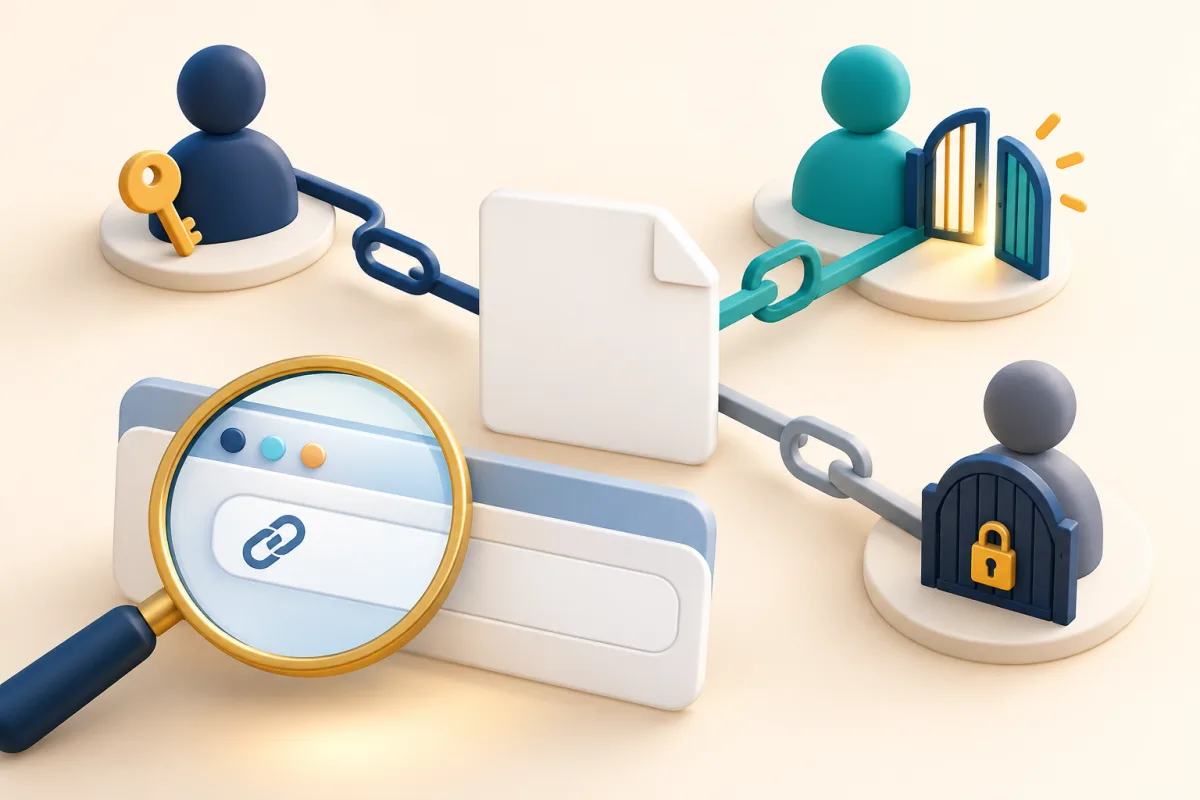
Create a simple record with the link, intended audience and three results: owner, authorised reader and signed-out visitor. For a private file, the expected outcome may be access for the first two and restriction for the third. For a public brochure, confirm the third sees the intended version. Note whether each reaches the correct file and can perform only the actions you allowed.
Then paste the final link into the email, button or channel you will use and test that copy. If publishing a QR, also check the scanned destination. Repeat the tests when replacing the file or changing access; an old test does not establish current state. Keep private administration addresses separately. You can then fix a permission without mistaking it for a badly copied URL or opening more content than necessary to solve the issue.